
Access the user settings page:
From a browser (recommended):
-
Login using an admin account
- Go to Settings
- Navigate to Users
From PS Mobile:
-
Login to the app using an admin account
-
Click Admin in the bottom right
-
Click Dashboard
-
Click the 9 squares in the top left
-
Click Settings
-
Click Users
From the Patronscan app:
-
Login to the app using an admin account
-
Click Admin in the top banner
-
Click Settings
-
Click Users
Add a new user:
-
Click Add User
-
Select a user type according to the level of access you want them to have:
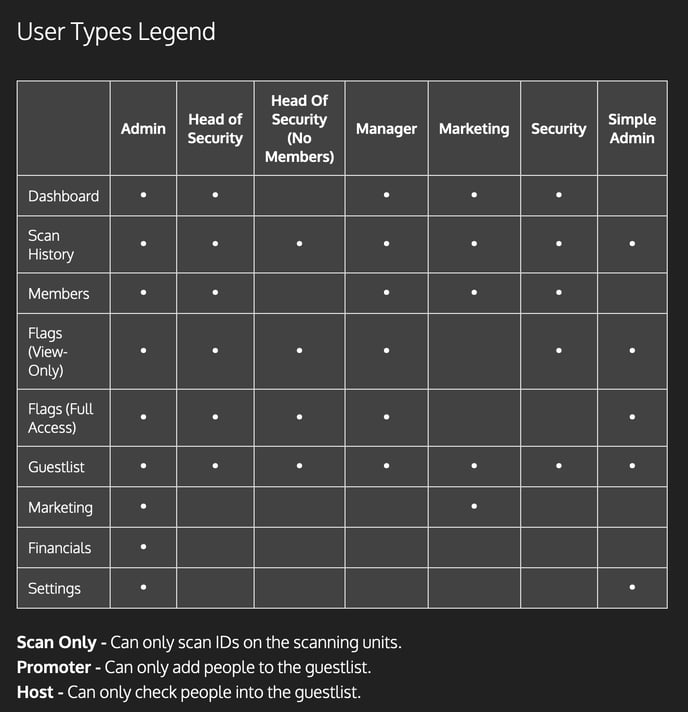
3. Choose a username. This is what the user will use to login to PS Mobile or Web Admin.
4. Choose a Scanner PIN. This is what the user will use to login to the Patronscan app.
5. Write down the Temporary Password. This is what the user will use to login to PS Mobile or Web Admin.
6. Click Save
Change a user’s type, name, username, or PIN:
-
Click Edit next to the user you want to edit
-
Change the user as desired
-
Click Save
Reset a user’s password:
-
Click Edit next to the user who lost their password
-
Click Reset Password
-
Write down the temporary password that appears
-
Follow the next heading to change the password to something memorable
Change a user’s password:
-
Login as the user whose password you want to change
-
Access Web Admin
-
Click My Account
-
Enter the new password and confirm
-
Click Save
Delete a user:
Click Remove next to the user you want to delete.