
Update and Verify Your Email
-
Log in to the Admin Portal.
-
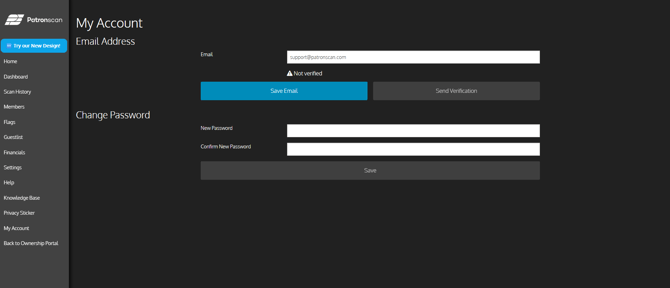
Navigate to My Account.
-
Enter your email address in the Email field.
-
Click Save Email.
-
Select Send Verification.
-
Check the inbox of the email address you entered.
-
Open the verification email and follow the instructions to confirm your email address.
Once verification is complete, the Admin Portal will display that your email has been successfully verified.
Reset Your Password
After your email address has been verified, you can reset your password if needed:
-
Go to the Admin Portal login screen.
-
Click Forgot Password.
-
Enter the verified email address associated with your account.
-
Follow the instructions in the password reset email to create a new password.
Note:
You must verify your email address before you can use the Forgot Password feature.